Google Play regularly introduces new requirements for the Android versions targeted by applications. When an app no longer meets the required level, Google Play Console displays a warning asking for a target SDK update.
This question currently comes up with Android SDK 36 (Android 16). For applications created with WPMobile.App, the fix is straightforward: generate a new version of the application from the Dashboard and publish it on Google Play.
There is, however, one particular situation that regularly leads to support requests: the production application has already been updated, but Google continues to display a warning. The cause may be an older release still present in a testing track.
Why does Google Play require a newer Android SDK?
Android uses API levels to identify the features and behaviours available in different versions of the operating system. An application includes a parameter called targetSdkVersion, which indicates the Android version it targets.
This is not the minimum Android version required to install the application. Instead, it mainly determines which compatibility rules and modern system behaviours apply to the app.
Google Play regularly updates its requirements so that applications account for recent Android changes, particularly those involving security, privacy and operating-system behaviour.
When an application targets an API level that is too old for the applicable requirements, Google Play Console may display a warning and request a newer release.
How to update the Android SDK with WPMobile
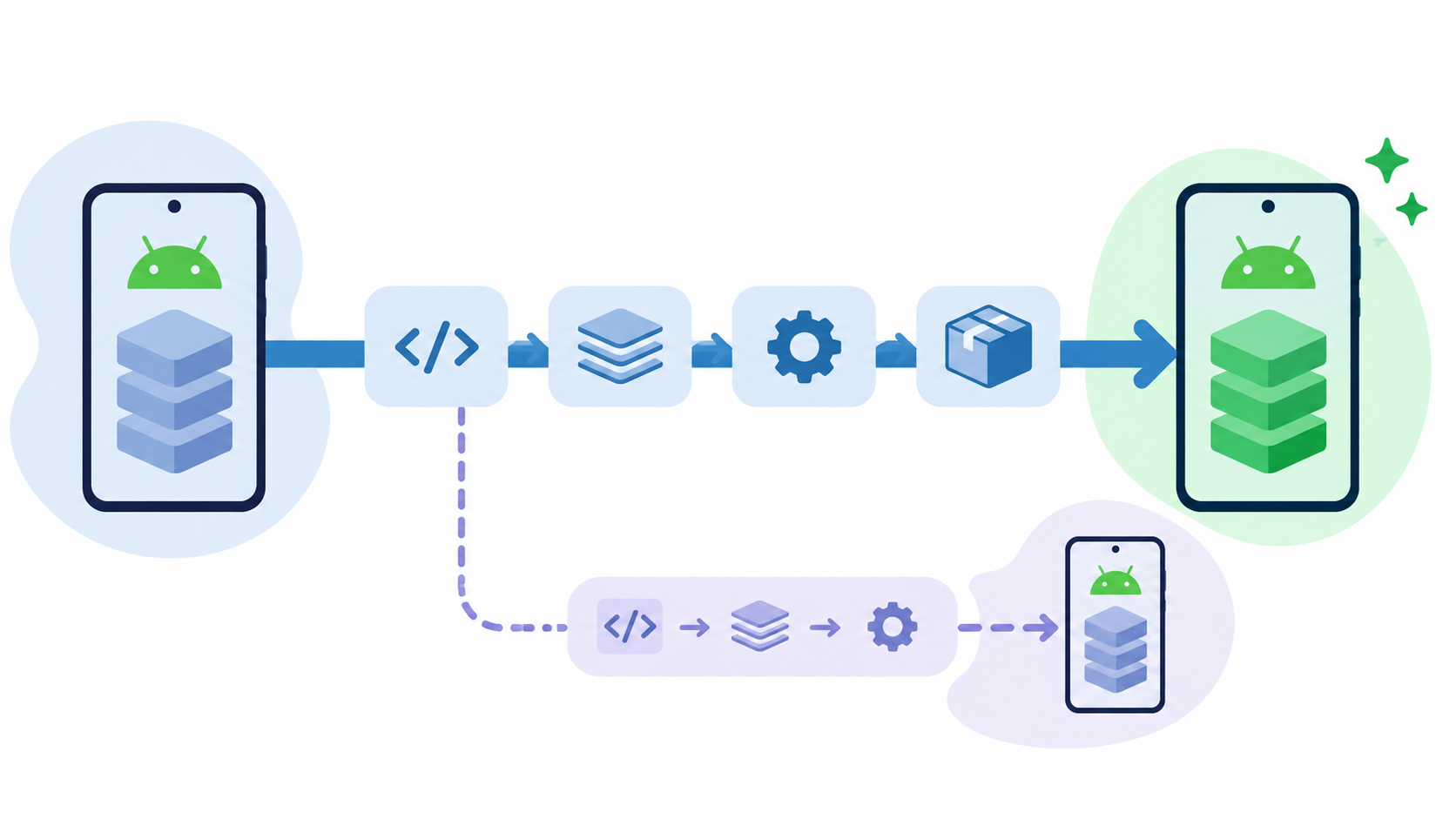
With WPMobile.App, there is no need to manually edit an Android Studio project, change Gradle files or configure the SDK on a computer. Application generation is handled through the WPMobile Dashboard.
The procedure is to open the Dashboard, select the relevant application and request an update to generate a new Android version using the target SDK supported by WPMobile.
Once the new version has been generated, download the Android App Bundle (.aab) and publish it through Google Play Console. The update then follows Google’s usual review and rollout process.
The steps are:
- Open the WPMobile.App Dashboard.
- Select the relevant Android application.
- Request an update and generate a new app version.
- Download the new .aab file.
- Create a new production release in Google Play Console.
- Upload the file and complete publication.
Once the release has been published and processed by Google, the production application uses the newer target SDK. No WordPress website changes are required for this operation because the update concerns the native Android layer.
Why does the warning sometimes remain after the update?
This is the situation that causes the most confusion. A new application has been generated, the .aab file has been uploaded, the production release is published, and yet Google Play Console still reports an outdated SDK.
The first thing to check is whether the new version has actually been published to production and whether Google has finished processing it. A file that has merely been uploaded or a release still under review does not constitute a completed production update.
If the new version is available, the next step is to examine the other Google Play distribution tracks. An older version may still be present in a testing track even though production already uses the correct SDK.
Google Play does not always limit its compatibility warnings to the latest production version. Versions that remain active in other tracks may also be included in its checks.
Check closed testing and open testing releases
Google Play Console allows applications to be distributed to different groups of users before general publication. Common tracks include internal testing, closed testing and open testing.
These tracks are useful during development and validation. However, an older release can sometimes remain there long after testing has finished.
For example, an application may have a recent production version targeting SDK 36 while an older version targeting a lower SDK remains in a closed testing track. The warning may continue because the older version is still being distributed or considered active in that track.
To investigate, open Google Play Console, select the application and review the testing sections under the release menu. Examine each track for older releases that are no longer needed.
Remove an outdated testing release that is no longer needed
If testing has finished and the affected release is no longer useful, there is no need to keep distributing it. Stop or deactivate its distribution from the corresponding testing track, using the options available in Google Play Console.
The goal is to ensure that an outdated Android version is no longer active in an unused distribution track. Older versions may remain visible in the Google Play Console history without requiring that history to be deleted.
Be careful not to confuse an old testing release with the version currently distributed in production. The production release should obviously not be stopped simply to make a warning disappear.
If the testing track is still in use, another option is to update it with a recent app version instead of stopping it. The appropriate choice depends on whether that track is still needed.
Is it a problem if the warning only concerns an old testing release?
If the production application already targets the required SDK and the warning comes only from an unused testing release, there is generally no need to rebuild the application again.
The issue is then not with the Android file generated by WPMobile but with release management in Google Play Console. An old version may remain associated with a distribution track even though the main version has already been updated.
It is still better to clean up unused testing tracks rather than ignore the warning indefinitely. This keeps the console easier to manage and prevents an old version from continuing to be offered to testers.
It is also important to distinguish a compatibility warning from an actual restriction imposed by Google. If Play Console specifies a deadline or a blocking issue, check that all affected releases meet the applicable requirements.
Do WordPress or the WPMobile plugin need updating?
The Android SDK level concerns the native application, not directly the WordPress website displayed inside the WebView. Updating WordPress, changing the theme or editing website content will therefore not resolve a target SDK warning.
The fix is to generate a new Android version through WPMobile and publish it on Google Play.
This illustrates the difference between website updates and application updates. WordPress content changes are generally visible immediately inside the app, while changes to Android requirements sometimes require a new native release.
This distinction is explained in the article about mobile application maintenance. It is a normal part of distributing apps through the stores.
What should be checked if Google Play still shows the warning?
If the warning remains visible, the checks are straightforward: confirm that the new production release has been published and processed, verify the target SDK of the new App Bundle, and examine any open or closed testing tracks.
In most support cases, there is no need to modify Android code or change the WordPress website. Generating a new version from the WPMobile Dashboard and publishing it correctly is sufficient to update the application.
And when an outdated testing release is responsible for the warning, stopping its distribution if it is no longer used resolves that final issue without unnecessarily rebuilding the app.